
Installing the Bella&Bona Daily Lunch Assistant takes approximately 3–5 minutes.
Step 1 – Install the Bella&Bona Lunch Assistant inside the Slack App
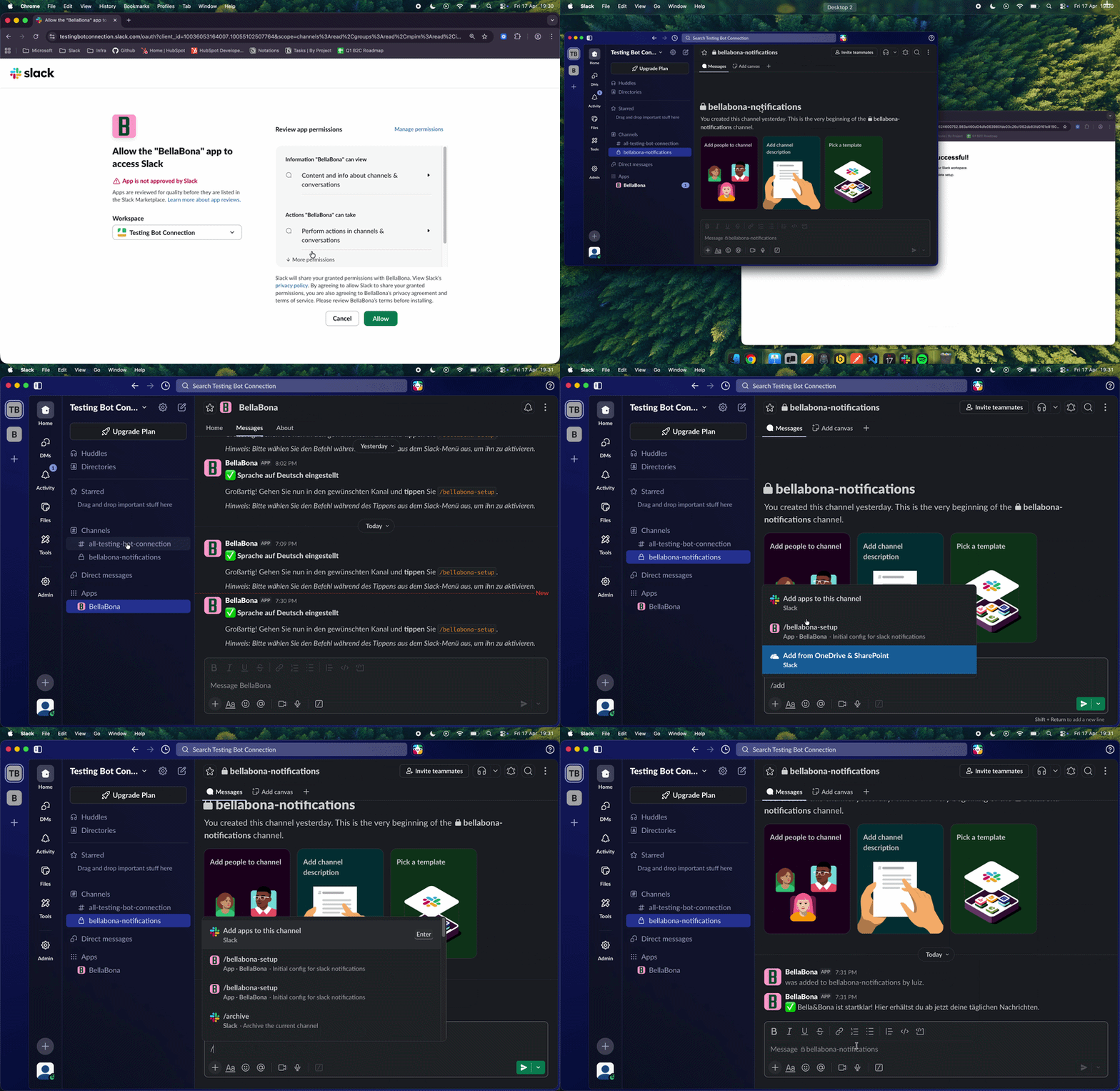
- Open the installation email from Bella&Bona.
- Click the secure installation link.
- Slack will open and ask you to:
- Select the correct workspace (important if you are part of multiple workspaces)
- Review the requested permissions
- Click Allow
After authorization:
- Slack opens automatically
- The Bella&Bona app appears under Apps in the sidebar
- If prompted, open the app chat and click Start
Step 2 – Select Your Company Language (Required)
Immediately after installation, you will receive a direct message from the Bella&Bona Lunch Assistant.
In this message, you must:
- Select the language in which your company should receive Bella&Bona Slack messages.
This setting defines:
- Menu reminders
- Operational notifications
- Automated updates
⚠️ IMPORTANT
If the language is not selected:
- Notifications may not be delivered correctly
- The setup is considered incomplete
Step 3 – Create a Bella&Bona Channel
We recommend creating a dedicated Slack channel for lunch communication.
Example channel names:
- #bella-bona
- #lunch
- #team-lunch
To create a channel:
- Click + next to Channels in Slack.
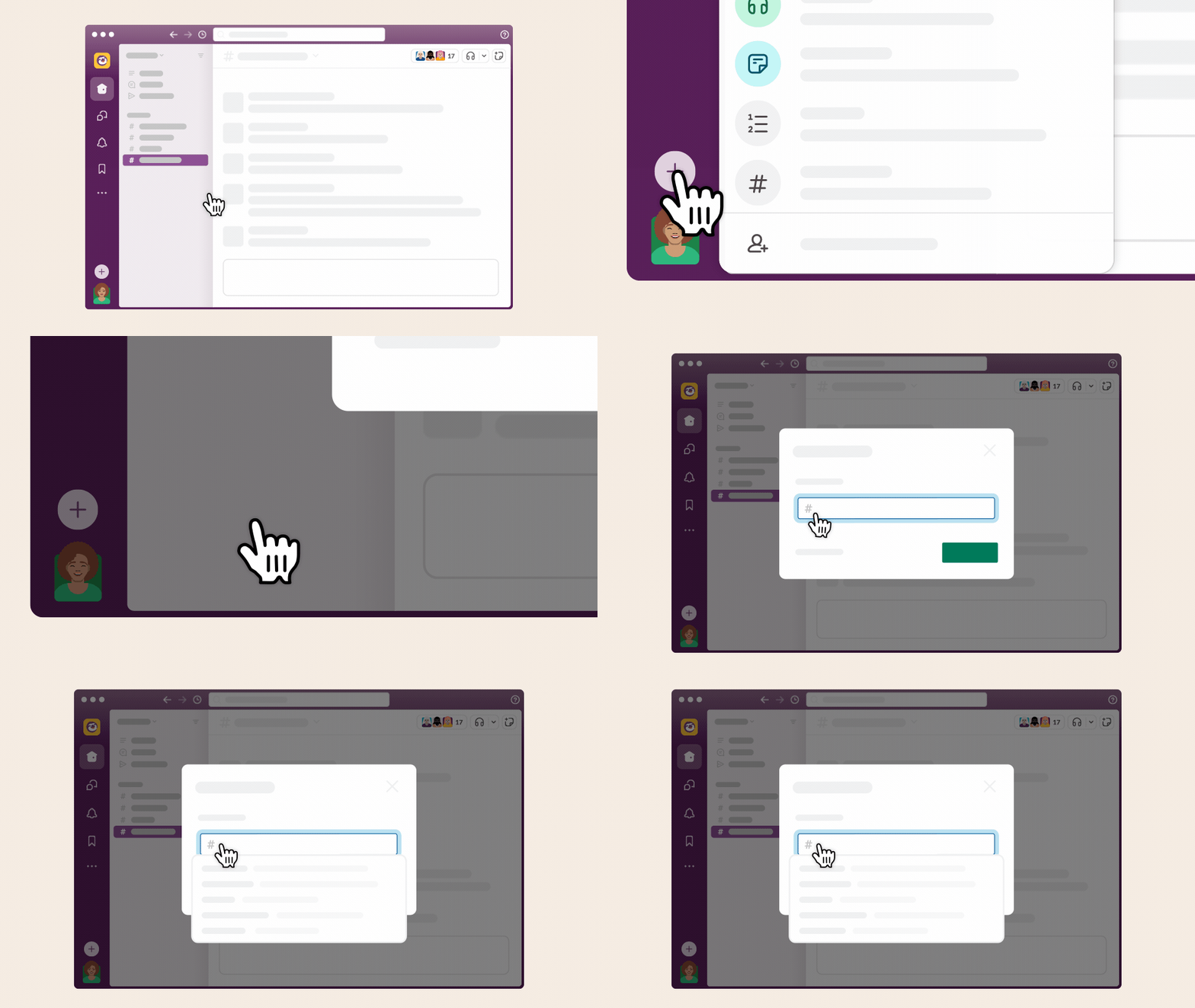
- Click Create channel.
- Choose a name.
- Select Public channel.
- Click Create.
Step 4 – Add the Bella&Bona Lunch Assistant to the Channel
Inside the new channel message box, type:
/add @BellaBona
(Use the exact app name as shown in Slack.)
This connects the Bella&Bona Lunch Assistant to the channel so it can post reminders.
Step 5 – Finalize the Setup Inside the Channel
After the Bella&Bona Lunch Assistant has been added to the channel, type the following command inside that same channel message box:
/bellabona-setupThen press Enter.
⚠️ IMPORTANT
The app must already be added to the channel before running this command. Otherwise, notifications will not be connected correctly.
Once the setup is completed successfully, you should see confirmation messages similar to the example below inside the Slack channel:
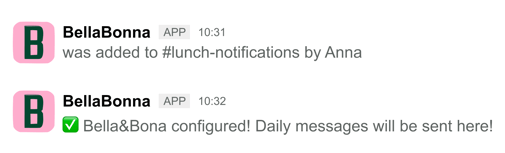
This confirms that:
- The app was successfully added to the channel
- Notifications are correctly connected to this channel
- Your team is ready to receive menu and delivery updates
Step 6 – Add Team Members to the Channel
You can add members manually:
- Open the channel.
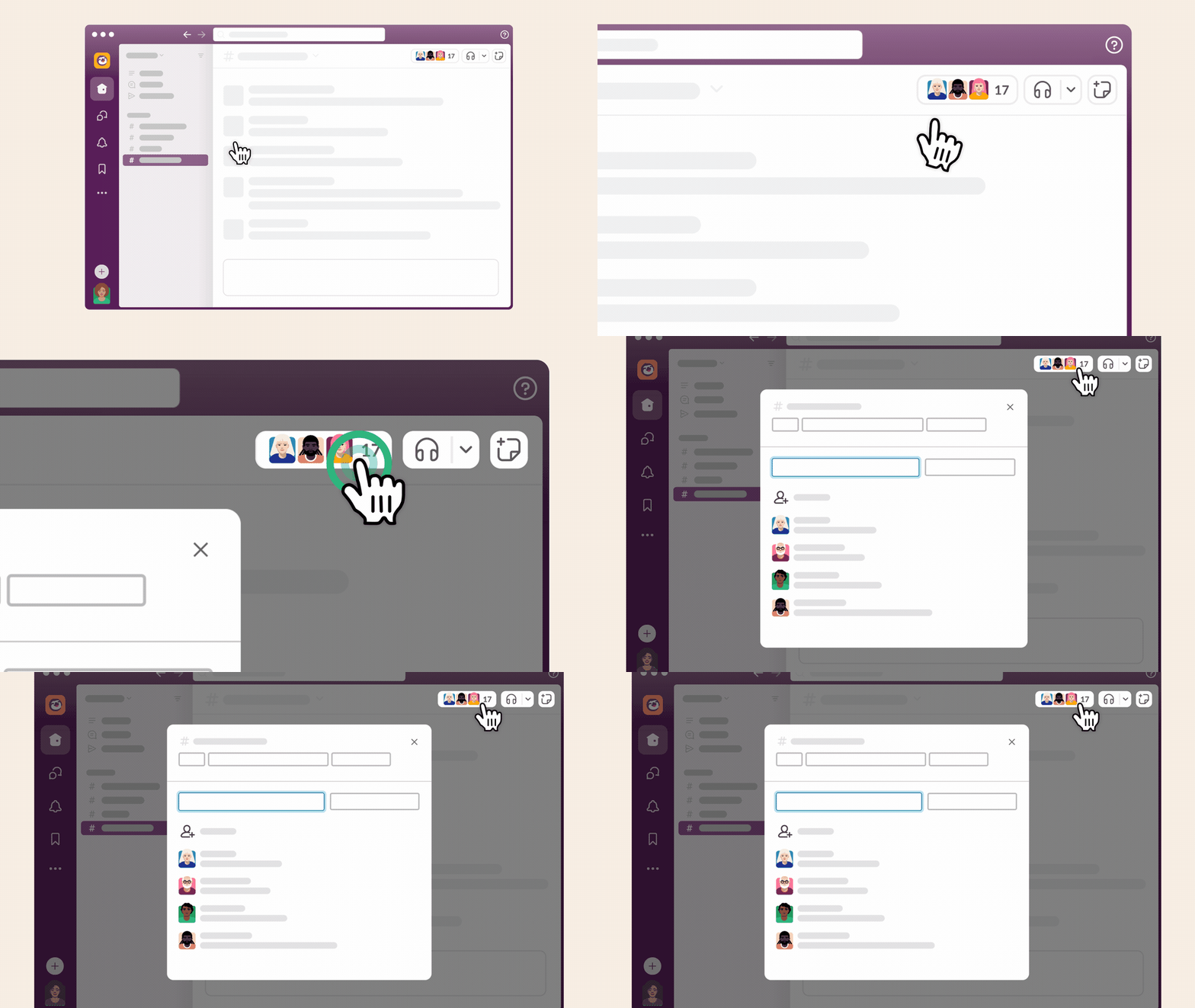
- Click the channel name at the top.
- Click Add people.
- Select members.
- Click Add.
Or use:
/invite @username